Articles by "How To"
Showing posts with label How To. Show all posts
Whatsapp is the most famous messaging application right now in the smartphone world with nearly 1 billion active users worldwide. Almost every OS has Whatsapp application in their store like iOS, Android, Windows, Symbian. Whatsapp reduced the usage of regular SMS among people. The best thing about Whatsapp is it not only allows you to convey the messages but also it allows you to share images, videos, files, etc.You don’t have to worry about the message delivery like in the Normal SMS. Whatsapp will deliver your messages instantly if the opponent has Active data or WiFi. With regular updates, it’s getting better and better, read the New Hide Last Seen update here. Good News is we can use Whatsapp Messenger application now even in our PC or Laptop. It will be very useful when we have issues with our smartphone.So in this article, we are going see How to install and use Whatsapp on PC or Laptop with step by step instructions.
If your Goal is to Maintain Two WhatsApp accounts even without computer Simply, then you can achieve the same by referring this article, which will let you use two WhatsApp accounts in your smartphone itself without rooting. But, if you want to make it work in PC/Laptop then continue reading the article

Step 1:

Download Thin BlueStacks App Player
To use Whatsapp in PC or Laptop, you need to Install an Android Emulator called as BlueStacks App Player. There are Two Versions of BlueStacks App players, Normal BlueStacks App player and Thin BlueStacks App player. There are many people facing issues while installing Normal BlueStacks App player So I Suggest you to Download and Install Thin BlueStacks App player.

Step 2:

Install Thin BlueStacks App Player
While Installing make sure the Installation Drive has more than 2 GB free Space otherwise, you will be getting an error like below see screenshot 1.  If you get any Graphics or drivers related warning message ignore it and select OK. Refer see screenshot 2.
Thin BlueStacks Installion
Thin BlueStacks Installaion
After installation, you will be getting screen like below, and now Select ‘ Messaging ‘ Icon and select Whatsapp
Insatlling Whatsa in PC

Step 3:

Download Whatsapp on PC

Click Whatsapp Icon to start downloading Whatsapp in PC
Installing Whatsapp in PC
Now wait until  Download completes
Installing Whatsapp in PC

Step 4:

Installing Whatsapp on PC

After downloading you will see INSTALLED status below Whatsapp and now Click Whatsapp icon to open the Whatsapp Messenger app
Installing Whatsapp in PC

Step 5:

Configuring Whatsapp in PC
As soon as you open the Whats in PC you will see the screen like below Click “Agree and Continue”
Configuring Whatsapp 1
Configuring Whatsapp 2
As soon as you enter your Mobile number Whatsapp will send you a verification code to confirm that you are the legitimate owner of this Mobile number, Enter your verification code to continue further. In some cases it may take a long time to receive the verification code in that case you use Call function to know your verification code
Configuring Whatsapp 3
Configuring Whatsapp 4
Configuring Whatsapp 5
Configuring Whatsapp 6
Configuring Whatsapp 7
You may think Whatsapp in PC is not a very good idea but it will be very useful when you face any sudden issues with your smartphone.

Amid the news of Aircel facing financial difficulties, many telecom tower companies who tie-up with Aircel has cut the network service. Due to this, lakhs of Aircel customers across India are facing issues such as frequent call drops.
In case, you also have an Aircel SIM card and want to port your number to any other service provider such as Airtel, you can follow the process given below.

In case you have want to port Prepaid number


1) First of all, open your message box and type PORT space and your 10-digit mobile number. Here's an example, suppose your mobile number is 78XXXXX890, they your message should be - PORT 78XXXXX890. Send this message to 1900.


2) Once you sent this message, you will get to reverts. Once, for the confirmation that you are willing to port your number and second message will come a few hours later with a Unique Port Code (UPC).


3) In case you are porting a prepaid Aircel number to Airtel Prepaid SIM, visit the nearest Airtel store along with your Aadhaar Card and other supporting documents such as address proof.


4) Provide your porting code UPC and document to the store. Once you submit all these details, you will get a new Airtel SIM with same number.


5) Your Aircel SIM will get deactivated in few hours. After that you can start using your new Airtel SIM.


In case you have want to port Postpaid number


1) Call the Airtel customercare or visit the online website to select the best plan for you and confirm details.


2) Airtel will send a representative to you at your convenient time


3) Provide Aadhaar details & UPC code to Airtel representative. He will give you a new Airtel SIM card


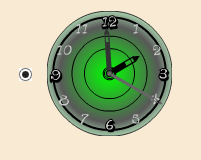
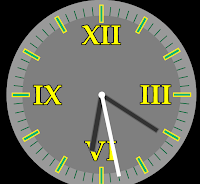
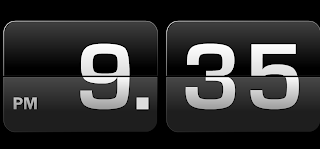
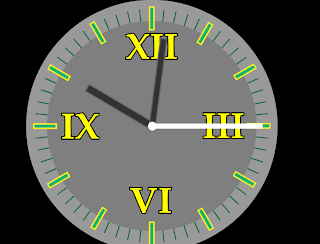
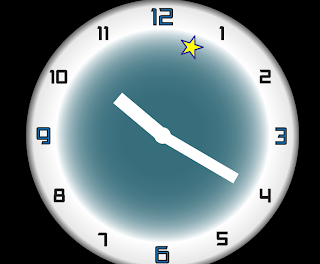
Today we give you Animated flash clock widget for your blogger blog. We are providing full tutorial and codes To Add Animated Flash Clock To Your Blogger Blog easily. This animated clock show time with animated flash and give you beautiful look for your website. Every blogger want to add clock on their blog, website, forum etc. because it is necessary for some blogs or forum. You can add this animated clock to your blog easily with follow some easy steps. I am providing you full working tested codes for all browser, you need just copy paste codes on your blog and some changes according to your blog.


Animated Flash Clock

Animated Flash Clock Widget for Blogger

Follow below steps to add Animated Flash Clock Widget for Blogger:

Step 1

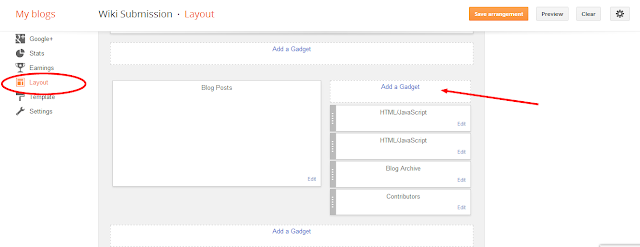
Log in into your Blogger Account and Go to Blogger Dashboard. Click on Layout tab at the left panel and click on Add a Gadget Link. See below picture for your help.

Animated Clock

Step 2

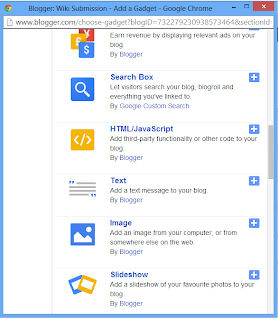
After click on Add a Gadget a popup window will open with all Gadgets list. Please select HTML/JavaScripts from Gadgets list as shown in below picture.

Animated Flash Clock Widget

Step 3


Now Select your Animated clock at below and paste their below code into HTML box:

Style 1

How To Add Animated Flash Clock Widget for Blogger


<center><object type="application/x-shockwave-flash" data="http://usefbcover.com/public/animated1.swf" width="150" height="150"><param name="movie" value="http://usefbcover.com/public/animated1.swf"></param><param name="allowscriptaccess" value="always"></param><param name="menu" value="false"></param><param name="wmode" value="transparent"></param><embed src="http://usefbcover.com/public/animated1.swf" type="application/x-shockwave-flash" allowscriptaccess="always" width="150" height="150" menu="false" wmode="transparent"></embed></object></center><div style="font-family: arial, sans-serif; font-size: 8px;" class="ycdr"><a href="http://www.haakblog.com/2013/11/add-animated-flash-clock-widget-blogger.html" target="_blank" title="Animated Clock">Animated Clock</a> <a href="http://www.haakblog.com/" target="_blank">Blogger</a></div>

Style 2 

How To Add Animated Flash Clock Widget for Blogger


<center><object type="application/x-shockwave-flash" data="http://usefbcover.com/public/animated2.swf" width="150" height="150"><param name="movie" value="http://usefbcover.com/public/animated2.swf"></param><param name="allowscriptaccess" value="always"></param><param name="menu" value="false"></param><param name="wmode" value="transparent"></param><embed src="http://usefbcover.com/public/animated2.swf" type="application/x-shockwave-flash" allowscriptaccess="always" width="150" height="150" menu="false" wmode="transparent"></embed></object></center><div style="font-family: arial, sans-serif; font-size: 8px;" class="ycdr"><a href="http://www.haakblog.com/2013/11/add-animated-flash-clock-widget-blogger.html" target="_blank" title="Animated Clock">Animated Clock</a> <a href="http://www.haakblog.com/" target="_blank">Blogger</a></div> 

Style 3

How To Add Animated Flash Clock Widget for Blogger


<center><object type="application/x-shockwave-flash" data="http://usefbcover.com/public/animated3.swf" width="150" height="150"><param name="movie" value="http://usefbcover.com/public/animated3.swf"></param><param name="allowscriptaccess" value="always"></param><param name="menu" value="false"></param><param name="wmode" value="transparent"></param><embed src="http://usefbcover.com/public/animated3.swf" type="application/x-shockwave-flash" allowscriptaccess="always" width="150" height="150" menu="false" wmode="transparent"></embed></object></center><div style="font-family: arial, sans-serif; font-size: 8px;" class="ycdr"><a href="http://www.haakblog.com/2013/11/add-animated-flash-clock-widget-blogger.html" target="_blank" title="Animated Clock">Animated Clock</a> <a href="http://www.haakblog.com/" target="_blank">Blogger</a></div>

Style 4 

How To Add Animated Flash Clock Widget for Blogger


<center><object type="application/x-shockwave-flash" data="http://usefbcover.com/public/animated4.swf" width="150" height="150"><param name="movie" value="http://usefbcover.com/public/animated4.swf"></param><param name="allowscriptaccess" value="always"></param><param name="menu" value="false"></param><param name="wmode" value="transparent"></param><embed src="http://usefbcover.com/public/animated4.swf" type="application/x-shockwave-flash" allowscriptaccess="always" width="150" height="150" menu="false" wmode="transparent"></embed></object></center><div style="font-family: arial, sans-serif; font-size: 8px;" class="ycdr"><a href="http://www.haakblog.com/2013/11/add-animated-flash-clock-widget-blogger.html" target="_blank" title="Animated Clock">Animated Clock</a> <a href="http://www.haakblog.com/" target="_blank">Blogger</a></div>

Style 5

How To Add Animated Flash Clock Widget for Blogger


<center><object type="application/x-shockwave-flash" data="http://usefbcover.com/public/animated5.swf" width="150" height="150"><param name="movie" value="http://usefbcover.com/public/animated5.swf"></param><param name="allowscriptaccess" value="always"></param><param name="menu" value="false"></param><param name="wmode" value="transparent"></param><embed src="http://usefbcover.com/public/animated5.swf" type="application/x-shockwave-flash" allowscriptaccess="always" width="150" height="150" menu="false" wmode="transparent"></embed></object></center><div style="font-family: arial, sans-serif; font-size: 8px;" class="ycdr"><a href="http://www.haakblog.com/2013/11/add-animated-flash-clock-widget-blogger.html" target="_blank" title="Animated Clock">Animated Clock</a> <a href="http://www.haakblog.com/" target="_blank">Blogger</a></div>

Style 6

How To Add Animated Flash Clock Widget for Blogger


<center><object type="application/x-shockwave-flash" data="http://usefbcover.com/public/animated6.swf" width="150" height="150"><param name="movie" value="http://usefbcover.com/public/animated6.swf"></param><param name="allowscriptaccess" value="always"></param><param name="menu" value="false"></param><param name="wmode" value="transparent"></param><embed src="http://usefbcover.com/public/animated6.swf" type="application/x-shockwave-flash" allowscriptaccess="always" width="150" height="150" menu="false" wmode="transparent"></embed></object></center><div style="font-family: arial, sans-serif; font-size: 8px;" class="ycdr"><a href="http://www.haakblog.com/2013/11/add-animated-flash-clock-widget-blogger.html" target="_blank" title="Animated Clock">Animated Clock</a> <a href="http://www.haakblog.com/" target="_blank">Blogger</a></div>

Style 7

Animated Flash Clock Widget for Blogger


<center><object type="application/x-shockwave-flash" data="http://usefbcover.com/public/animated7.swf" width="150" height="150"><param name="movie" value="http://usefbcover.com/public/animated7.swf"></param><param name="allowscriptaccess" value="always"></param><param name="menu" value="false"></param><param name="wmode" value="transparent"></param><embed src="http://usefbcover.com/public/animated7.swf" type="application/x-shockwave-flash" allowscriptaccess="always" width="150" height="150" menu="false" wmode="transparent"></embed></object></center><div style="font-family: arial, sans-serif; font-size: 8px;" class="ycdr"><a href="http://www.haakblog.com/2013/11/add-animated-flash-clock-widget-blogger.html" target="_blank" title="Animated Clock">Animated Clock</a> <a href="http://www.haakblog.com/" target="_blank">Blogger</a></div>

Style 8 

How To Add Animated Flash Clock Widget for Blogger


<center><object type="application/x-shockwave-flash" data="http://usefbcover.com/public/animated8.swf" width="150" height="150"><param name="movie" value="http://usefbcover.com/public/animated8.swf"></param><param name="allowscriptaccess" value="always"></param><param name="menu" value="false"></param><param name="wmode" value="transparent"></param><embed src="http://usefbcover.com/public/animated8.swf" type="application/x-shockwave-flash" allowscriptaccess="always" width="150" height="150" menu="false" wmode="transparent"></embed></object></center><div style="font-family: arial, sans-serif; font-size: 8px;" class="ycdr"><a href="http://www.haakblog.com/2013/11/add-animated-flash-clock-widget-blogger.html" target="_blank" title="Animated Clock">Animated Clock</a> <a href="http://www.haakblog.com/" target="_blank">Blogger</a></div>

Style 9

How To Add Animated Flash Clock Widget for Blogger


<center><object type="application/x-shockwave-flash" data="http://usefbcover.com/public/animated9.swf" width="150" height="150"><param name="movie" value="http://usefbcover.com/public/animated9.swf"></param><param name="allowscriptaccess" value="always"></param><param name="menu" value="false"></param><param name="wmode" value="transparent"></param><embed src="http://usefbcover.com/public/animated9.swf" type="application/x-shockwave-flash" allowscriptaccess="always" width="150" height="150" menu="false" wmode="transparent"></embed></object></center><div style="font-family: arial, sans-serif; font-size: 8px;" class="ycdr"><a href="http://www.haakblog.com/2013/11/add-animated-flash-clock-widget-blogger.html" target="_blank" title="Animated Clock">Animated Clock</a> <a href="http://www.haakblog.com/" target="_blank">Blogger</a></div>

Style 10

How To Add Animated Flash Clock Widget for Blogger


<center><object type="application/x-shockwave-flash" data="http://usefbcover.com/public/animated10.swf" width="150" height="150"><param name="movie" value="http://usefbcover.com/public/animated10.swf"></param><param name="allowscriptaccess" value="always"></param><param name="menu" value="false"></param><param name="wmode" value="transparent"></param><embed src="http://usefbcover.com/public/animated10.swf" type="application/x-shockwave-flash" allowscriptaccess="always" width="150" height="150" menu="false" wmode="transparent"></embed></object></center><div style="font-family: arial, sans-serif; font-size: 8px;" class="ycdr"><a href="http://www.haakblog.com/2013/11/add-animated-flash-clock-widget-blogger.html" target="_blank" title="Animated Clock">Animated Clock</a> <a href="http://www.haakblog.com/" target="_blank">Blogger</a></div>
Back To Top