Articles by "Blogger"
Showing posts with label Blogger. Show all posts
blogging-facts
Blogging which started in mid nineties as a personal hobby to share one’s thoughts has indeed come a long way. Initially, it was nothing more than an extension of diary writing but in no time, it turned into a powerful medium. Soon, people started using it as a source of secondary income and some were even lucky enough to be full time, professional bloggers. Today, it is used widely by businesses as part of their marketing strategy.
Did you know how the term, ‘blog’ was coined? It is a contraction of two words – web and log. The term was first used and made popular by Jorn Barger, an American blogger. Here are some more interesting facts about blogging:
  1. Justin Hall, a US freelance journalist is said to be the first blogger. In 1994, while still in college, he managed to publish his first blog.
  2. WordPress and Blogspot are two most popular blogging platforms. WordPress, a relatively late entrant in blogging, has surpassed its elder brother, Blogspot in terms of popularity. More than 40 percent of bloggers use WordPress.
  3. In 1999, there were just 23 blogs. Today, there are over 1.5 billion blogs on the internet. WordPress.com alone has over 60 millions of them. Every half a second, a new blog is created. There are about 31 million bloggers in the US.
  4. More than 60% of blogs are in English. Other prominent languages include Spanish, Portuguese, and Indonesian.
  5. Over half of the blogging community has more than one blog. Professional bloggers have 4 blogs, on an average. Only about 27 percent of bloggers are full time into it.
  6. 1 in every 5 bloggers updates his/her blog daily. Most of the blogs are read in the morning between 7 AM to 10 AM.
  7. Bloggers use social media to promote their blogs. A blogger on an average uses 5 social media sites.
  8. A blog post is powerful enough to influence a purchase. Businesses that blog get more visitors to their website. Almost half of the companies in the US use blogs for the purpose of marketing their product/services.
  9. Earning from a blog is not something that happens overnight. It takes a sound strategy along with a high dose of perseverance. About one-fifth of bloggers have been into it for more than 6 long years.
  10. Less than 10 percent of bloggers earn enough to support their family. More than 80 percent never ever make it to even $100.

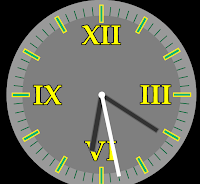
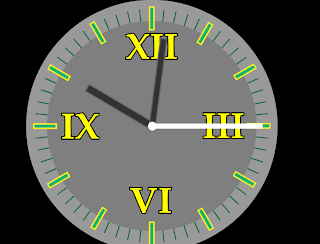
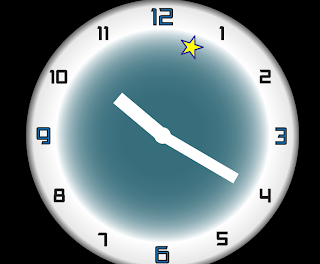
Today we give you Animated flash clock widget for your blogger blog. We are providing full tutorial and codes To Add Animated Flash Clock To Your Blogger Blog easily. This animated clock show time with animated flash and give you beautiful look for your website. Every blogger want to add clock on their blog, website, forum etc. because it is necessary for some blogs or forum. You can add this animated clock to your blog easily with follow some easy steps. I am providing you full working tested codes for all browser, you need just copy paste codes on your blog and some changes according to your blog.


Animated Flash Clock

Animated Flash Clock Widget for Blogger

Follow below steps to add Animated Flash Clock Widget for Blogger:

Step 1

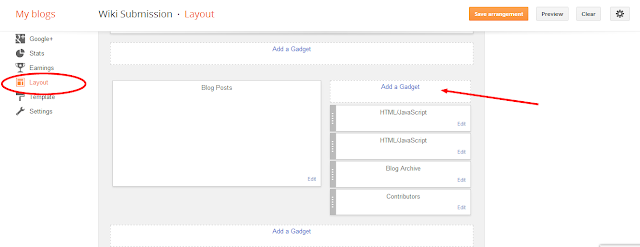
Log in into your Blogger Account and Go to Blogger Dashboard. Click on Layout tab at the left panel and click on Add a Gadget Link. See below picture for your help.

Animated Clock

Step 2

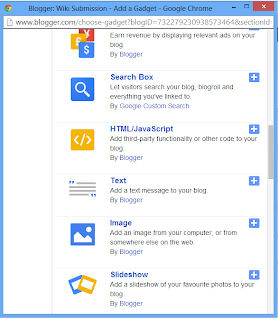
After click on Add a Gadget a popup window will open with all Gadgets list. Please select HTML/JavaScripts from Gadgets list as shown in below picture.

Animated Flash Clock Widget

Step 3


Now Select your Animated clock at below and paste their below code into HTML box:

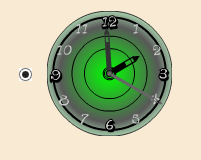
Style 1

How To Add Animated Flash Clock Widget for Blogger


<center><object type="application/x-shockwave-flash" data="http://usefbcover.com/public/animated1.swf" width="150" height="150"><param name="movie" value="http://usefbcover.com/public/animated1.swf"></param><param name="allowscriptaccess" value="always"></param><param name="menu" value="false"></param><param name="wmode" value="transparent"></param><embed src="http://usefbcover.com/public/animated1.swf" type="application/x-shockwave-flash" allowscriptaccess="always" width="150" height="150" menu="false" wmode="transparent"></embed></object></center><div style="font-family: arial, sans-serif; font-size: 8px;" class="ycdr"><a href="http://www.haakblog.com/2013/11/add-animated-flash-clock-widget-blogger.html" target="_blank" title="Animated Clock">Animated Clock</a> <a href="http://www.haakblog.com/" target="_blank">Blogger</a></div>

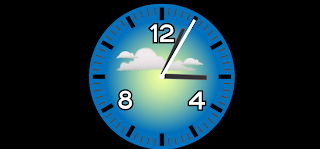
Style 2 

How To Add Animated Flash Clock Widget for Blogger


<center><object type="application/x-shockwave-flash" data="http://usefbcover.com/public/animated2.swf" width="150" height="150"><param name="movie" value="http://usefbcover.com/public/animated2.swf"></param><param name="allowscriptaccess" value="always"></param><param name="menu" value="false"></param><param name="wmode" value="transparent"></param><embed src="http://usefbcover.com/public/animated2.swf" type="application/x-shockwave-flash" allowscriptaccess="always" width="150" height="150" menu="false" wmode="transparent"></embed></object></center><div style="font-family: arial, sans-serif; font-size: 8px;" class="ycdr"><a href="http://www.haakblog.com/2013/11/add-animated-flash-clock-widget-blogger.html" target="_blank" title="Animated Clock">Animated Clock</a> <a href="http://www.haakblog.com/" target="_blank">Blogger</a></div> 

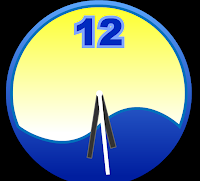
Style 3

How To Add Animated Flash Clock Widget for Blogger


<center><object type="application/x-shockwave-flash" data="http://usefbcover.com/public/animated3.swf" width="150" height="150"><param name="movie" value="http://usefbcover.com/public/animated3.swf"></param><param name="allowscriptaccess" value="always"></param><param name="menu" value="false"></param><param name="wmode" value="transparent"></param><embed src="http://usefbcover.com/public/animated3.swf" type="application/x-shockwave-flash" allowscriptaccess="always" width="150" height="150" menu="false" wmode="transparent"></embed></object></center><div style="font-family: arial, sans-serif; font-size: 8px;" class="ycdr"><a href="http://www.haakblog.com/2013/11/add-animated-flash-clock-widget-blogger.html" target="_blank" title="Animated Clock">Animated Clock</a> <a href="http://www.haakblog.com/" target="_blank">Blogger</a></div>

Style 4 

How To Add Animated Flash Clock Widget for Blogger


<center><object type="application/x-shockwave-flash" data="http://usefbcover.com/public/animated4.swf" width="150" height="150"><param name="movie" value="http://usefbcover.com/public/animated4.swf"></param><param name="allowscriptaccess" value="always"></param><param name="menu" value="false"></param><param name="wmode" value="transparent"></param><embed src="http://usefbcover.com/public/animated4.swf" type="application/x-shockwave-flash" allowscriptaccess="always" width="150" height="150" menu="false" wmode="transparent"></embed></object></center><div style="font-family: arial, sans-serif; font-size: 8px;" class="ycdr"><a href="http://www.haakblog.com/2013/11/add-animated-flash-clock-widget-blogger.html" target="_blank" title="Animated Clock">Animated Clock</a> <a href="http://www.haakblog.com/" target="_blank">Blogger</a></div>

Style 5

How To Add Animated Flash Clock Widget for Blogger


<center><object type="application/x-shockwave-flash" data="http://usefbcover.com/public/animated5.swf" width="150" height="150"><param name="movie" value="http://usefbcover.com/public/animated5.swf"></param><param name="allowscriptaccess" value="always"></param><param name="menu" value="false"></param><param name="wmode" value="transparent"></param><embed src="http://usefbcover.com/public/animated5.swf" type="application/x-shockwave-flash" allowscriptaccess="always" width="150" height="150" menu="false" wmode="transparent"></embed></object></center><div style="font-family: arial, sans-serif; font-size: 8px;" class="ycdr"><a href="http://www.haakblog.com/2013/11/add-animated-flash-clock-widget-blogger.html" target="_blank" title="Animated Clock">Animated Clock</a> <a href="http://www.haakblog.com/" target="_blank">Blogger</a></div>

Style 6

How To Add Animated Flash Clock Widget for Blogger


<center><object type="application/x-shockwave-flash" data="http://usefbcover.com/public/animated6.swf" width="150" height="150"><param name="movie" value="http://usefbcover.com/public/animated6.swf"></param><param name="allowscriptaccess" value="always"></param><param name="menu" value="false"></param><param name="wmode" value="transparent"></param><embed src="http://usefbcover.com/public/animated6.swf" type="application/x-shockwave-flash" allowscriptaccess="always" width="150" height="150" menu="false" wmode="transparent"></embed></object></center><div style="font-family: arial, sans-serif; font-size: 8px;" class="ycdr"><a href="http://www.haakblog.com/2013/11/add-animated-flash-clock-widget-blogger.html" target="_blank" title="Animated Clock">Animated Clock</a> <a href="http://www.haakblog.com/" target="_blank">Blogger</a></div>

Style 7

Animated Flash Clock Widget for Blogger


<center><object type="application/x-shockwave-flash" data="http://usefbcover.com/public/animated7.swf" width="150" height="150"><param name="movie" value="http://usefbcover.com/public/animated7.swf"></param><param name="allowscriptaccess" value="always"></param><param name="menu" value="false"></param><param name="wmode" value="transparent"></param><embed src="http://usefbcover.com/public/animated7.swf" type="application/x-shockwave-flash" allowscriptaccess="always" width="150" height="150" menu="false" wmode="transparent"></embed></object></center><div style="font-family: arial, sans-serif; font-size: 8px;" class="ycdr"><a href="http://www.haakblog.com/2013/11/add-animated-flash-clock-widget-blogger.html" target="_blank" title="Animated Clock">Animated Clock</a> <a href="http://www.haakblog.com/" target="_blank">Blogger</a></div>

Style 8 

How To Add Animated Flash Clock Widget for Blogger


<center><object type="application/x-shockwave-flash" data="http://usefbcover.com/public/animated8.swf" width="150" height="150"><param name="movie" value="http://usefbcover.com/public/animated8.swf"></param><param name="allowscriptaccess" value="always"></param><param name="menu" value="false"></param><param name="wmode" value="transparent"></param><embed src="http://usefbcover.com/public/animated8.swf" type="application/x-shockwave-flash" allowscriptaccess="always" width="150" height="150" menu="false" wmode="transparent"></embed></object></center><div style="font-family: arial, sans-serif; font-size: 8px;" class="ycdr"><a href="http://www.haakblog.com/2013/11/add-animated-flash-clock-widget-blogger.html" target="_blank" title="Animated Clock">Animated Clock</a> <a href="http://www.haakblog.com/" target="_blank">Blogger</a></div>

Style 9

How To Add Animated Flash Clock Widget for Blogger


<center><object type="application/x-shockwave-flash" data="http://usefbcover.com/public/animated9.swf" width="150" height="150"><param name="movie" value="http://usefbcover.com/public/animated9.swf"></param><param name="allowscriptaccess" value="always"></param><param name="menu" value="false"></param><param name="wmode" value="transparent"></param><embed src="http://usefbcover.com/public/animated9.swf" type="application/x-shockwave-flash" allowscriptaccess="always" width="150" height="150" menu="false" wmode="transparent"></embed></object></center><div style="font-family: arial, sans-serif; font-size: 8px;" class="ycdr"><a href="http://www.haakblog.com/2013/11/add-animated-flash-clock-widget-blogger.html" target="_blank" title="Animated Clock">Animated Clock</a> <a href="http://www.haakblog.com/" target="_blank">Blogger</a></div>

Style 10

How To Add Animated Flash Clock Widget for Blogger


<center><object type="application/x-shockwave-flash" data="http://usefbcover.com/public/animated10.swf" width="150" height="150"><param name="movie" value="http://usefbcover.com/public/animated10.swf"></param><param name="allowscriptaccess" value="always"></param><param name="menu" value="false"></param><param name="wmode" value="transparent"></param><embed src="http://usefbcover.com/public/animated10.swf" type="application/x-shockwave-flash" allowscriptaccess="always" width="150" height="150" menu="false" wmode="transparent"></embed></object></center><div style="font-family: arial, sans-serif; font-size: 8px;" class="ycdr"><a href="http://www.haakblog.com/2013/11/add-animated-flash-clock-widget-blogger.html" target="_blank" title="Animated Clock">Animated Clock</a> <a href="http://www.haakblog.com/" target="_blank">Blogger</a></div>
1. Go to Blogger.
2. Click on ▼.
3. Click on the blog you wish to delete.
4. Click on Settings.
5. Click on Other.
6. Click on Delete Blog.
7. Click on Delete This Blog.

1
Deleting Your Entire Blog

  1. 1
    Go to Blogger. If you're not automatically logged in, click on Sign In in the upper right, and enter your Google username and password.
    • The window will open to the main screen of your most-recently accessed blog.
  2. 2
    Click on ▼. It's located to the right of your blog's title, just below the Blogger logo in the upper left of the window.
  3. 3
    Click on the blog you wish to delete. All of your Blogger blogs will appear in the drop-down you just opened.
    • Only owners or admins can delete a blog.
  4. 4
    Click on Settings. It's near the bottom of the menu on the left side of the window.
    • You may have to scroll down to see it.
  5. 5
    Click on Other. It's near the bottom of the sub-menu that opens under Settings.
  6. 6
    Click on Delete Blog. It's on the right side of the screen, in the second section of options.
    • If you want to save a copy of your blog, click Download Blog in the dialog box that pops up.
  7. 7
    Click on Delete This Blog. Your blog has been deleted from your Blogger account.
    • You'll have 90 days to change your mind and restore the blog. You can do so from theDeleted Blogs list in the drop-down menu of your Blogger blogs.


  8. 2
    Deleting Specific Posts
  1. 1
    Go to Blogger. If you're not automatically logged in, click on Sign In in the upper right, and enter your Google username and password.
    • The window will open to the main screen of your most-recently accessed blog.
  2. 2
    Click on ▼. It's located to the right of your blog's title, just below the Blogger logo in the upper left of the window.
  3. 3
    Click on the blog containing the you wish to delete. All of your Blogger blogs will appear in the drop-down you just opened.
    • Only owners or admins can delete a blog post.
  4. 4
    Check the blog post you wish to delete. All the posts in your blog will appear on the right side of the screen.
    • You may need to scroll down to find the post you want to delete.
  5. 5
    Click on Delete. It will appear just beneath the checked post.
  6. 6
    Click on OK. The deleted post will no longer appear in your blog and any existing links to it will no longer function.